Read Time: 8 minutes
The Overlooked LinkedIn Features Quietly Booking More Speaking Gigs
Summary: This article walks you through three overlooked LinkedIn profile tools that can quietly book you more speaking gigs.
You’ll learn how to turn each into a mini speaker one-sheet—with examples, prompts, and small tweaks that make a big difference for event planners searching for business speakers like you.
When I talk to professionals about their brand-building ambitions on LinkedIn, it’s never too far into the conversation before they say something like:
“And yes, I want to get paid to speak about my expertise.
If event organizers and corporations can find and hire me, and I can be booked out reliably, that would make a massive difference in my business.”
LinkedIn is one of the best places for that to happen. It’s a directory of professionals, decision-makers, and budget owners.
The good news: most speakers are already doing the obvious things—adding “Speaker” or “Keynote Speaker” to their headline, including a speaking topic in their About section, and occasionally posting clips from talks.
The great news: there are a few lesser-known profile tools that do a disproportionate amount of heavy lifting for you behind the scenes.
When I audit someone’s profile live, I coach them to turn on and optimize these three sections:
1. Create a cover photo “slideshow”
While this is a Business Premium feature, I strongly recommend it for speakers. Social proof is a key selling instrument in many industries—but especially for speaking, where your work and energy can literally be seen through photos. The more visual credibility you have, indicating “I do this for a living,” the better.
The LinkedIn premium profile slideshow allows you to feature up to five images to illustrate your energy, and you can use it in various ways.
Why this matters (backed by research)
Studies on LinkedIn profiles show that people with a profile picture are perceived as more socially attractive and more competent than those without one. Europub
Research on online hiring markets finds that when decision-makers are scanning many candidates, they rely more heavily on quick visual cues like profile photos to judge “who looks the part.” Phys.org
If visuals on any professional profile influence perceived competence, then a rich, well-curated speaker slideshow is a power move: it lets event planners see you “already looking the part” on a real stage, not just in a headshot.
What to include in your slideshow
Praise and feedback from audiences
Multiple shots of you speaking
Audience reactions (helps convey the energy you create in the room)
The topics you speak on
The easiest way to book you
Logos and rooms: a slide that shows a mosaic of client/event logos (even mid-tier associations and internal conferences) plus one room shot. Planners scan for “who trusts you” and “what scale of room you’re comfortable in.”
Formats you deliver: a slide that explicitly lists “Keynotes • Breakouts • Workshops • Executive Retreats • Virtual Sessions.” This helps corporate buyers quickly map where you fit into their agenda.
Industries & audiences: one line that says something like, “I work with HR, sales, and leadership teams in SaaS, financial services, and healthcare,” so decision-makers can self-qualify in seconds.
Micro-case: Quinn Conyers and Rachel Druckenmiller
Take Quinn Conyers’ cover image: at a glance, you see that she’s a professional conference emcee for associations, conferences, and women’s events—with recognizable logos and “High-Energy Event Host” language front and center.
 |
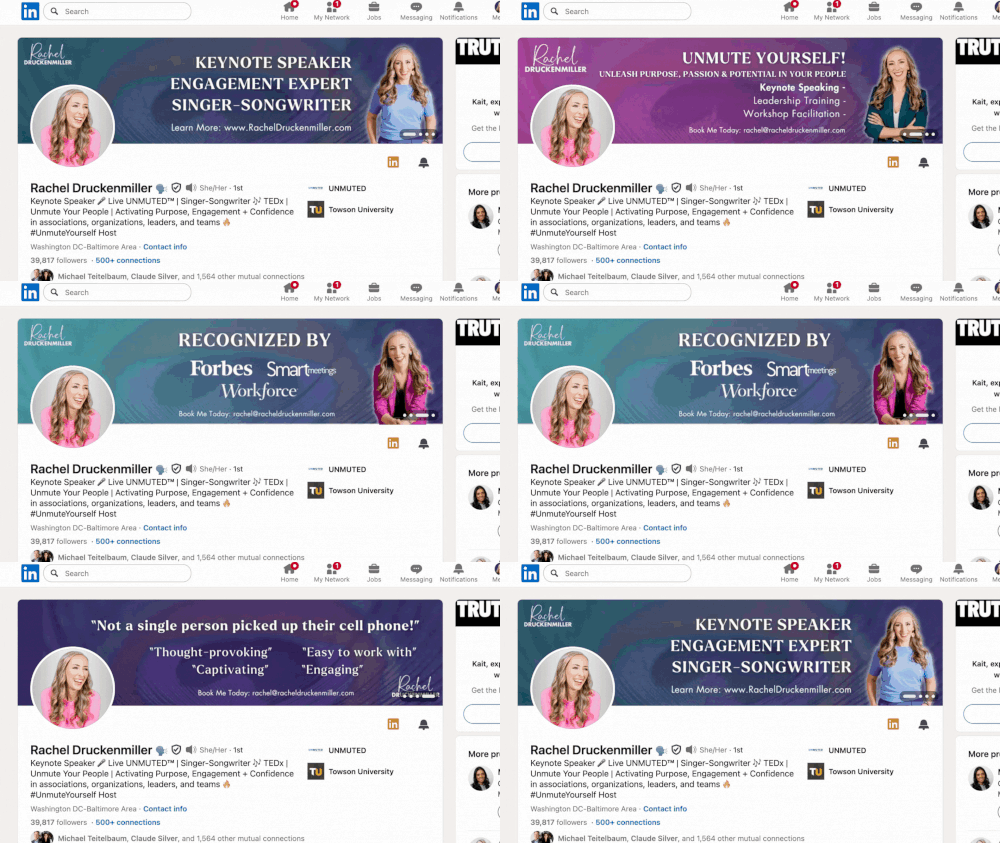
Similarly, Rachel Druckenmiller’s banner plants a flag: “Keynote Speaker • Engagement Expert • Singer-Songwriter,” plus a clear “Learn more” CTA. You don’t have to scroll, read her About, or hunt around—her profile visuals do the positioning work instantly.
 |
2. Turn on your services section
The LinkedIn services section is not a premium profile feature. Instead, it is a part of your profile that you can turn on to enter LinkedIn’s matchmaking marketplace between clients with needs (like needing a conference speaker) and service providers.
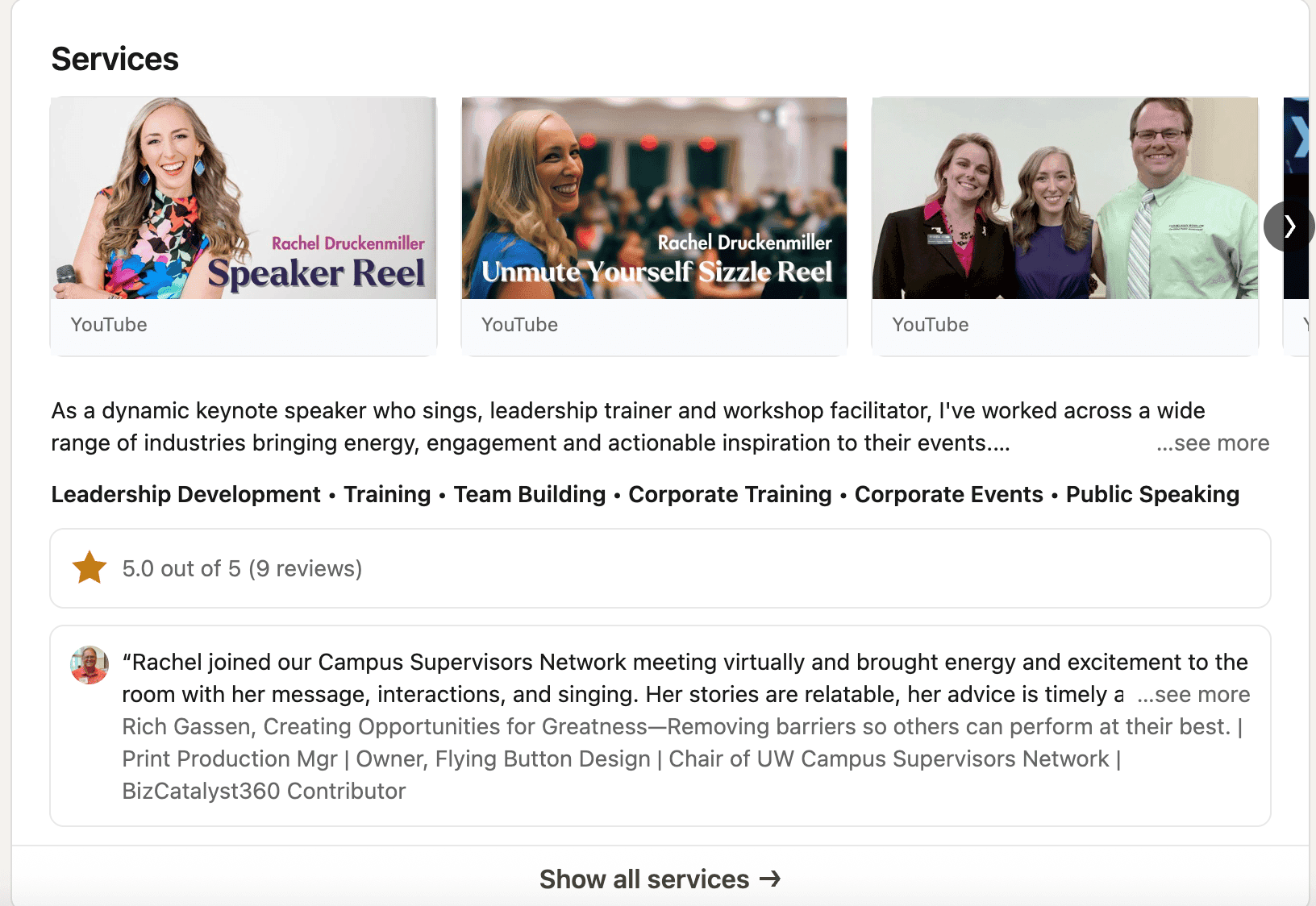
The service section is a huge win for speakers (albeit vastly underutilized) for a few reasons:
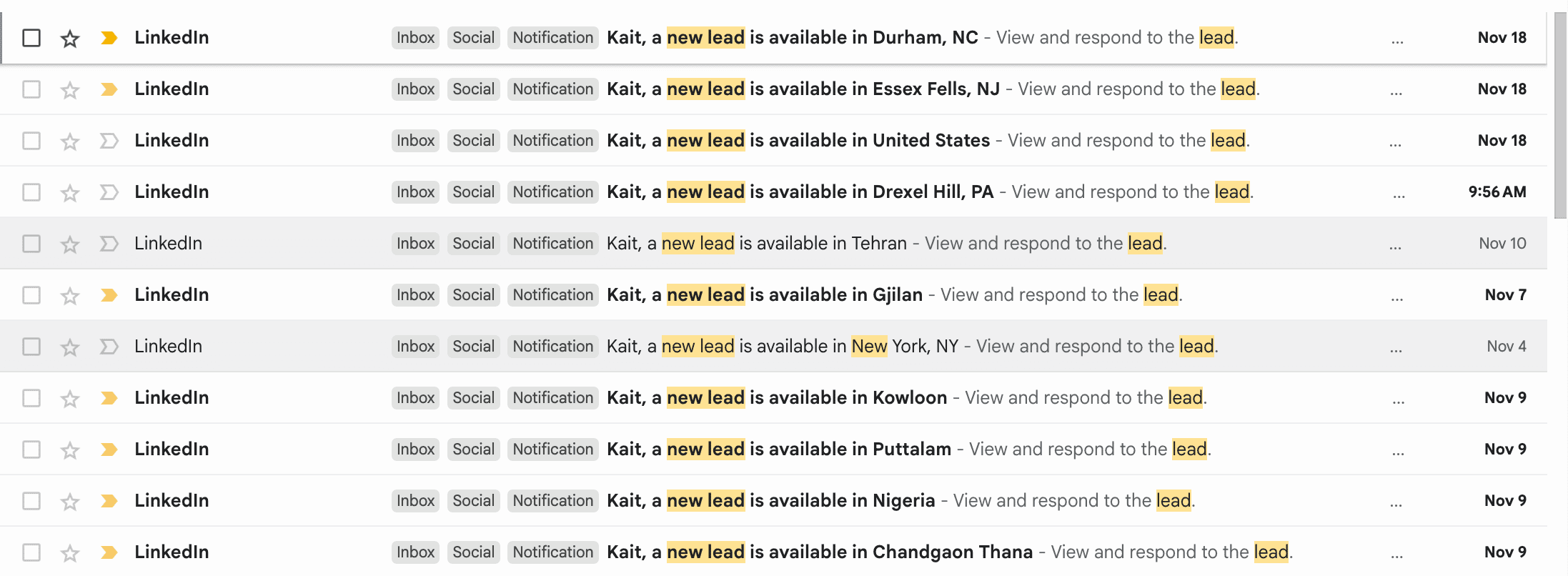
You get emailed leads when you match the criteria for someone’s request
2. They can view your services page and specifically request that you apply
3. You can add loads of credibility by asking your customers to rate you directly on your service page, so it’s all tied to your services
4. You can upload several multimedia assets, like a speaker’s real
5. It sits high up on your profile and occupies a significant amount of visual space when you complete it.
In essence, when optimized correctly, your service page doesn’t whisper, but screams to people, ‘I’m a serious speaker, I do this for a living, and I should be paid top dollar.'
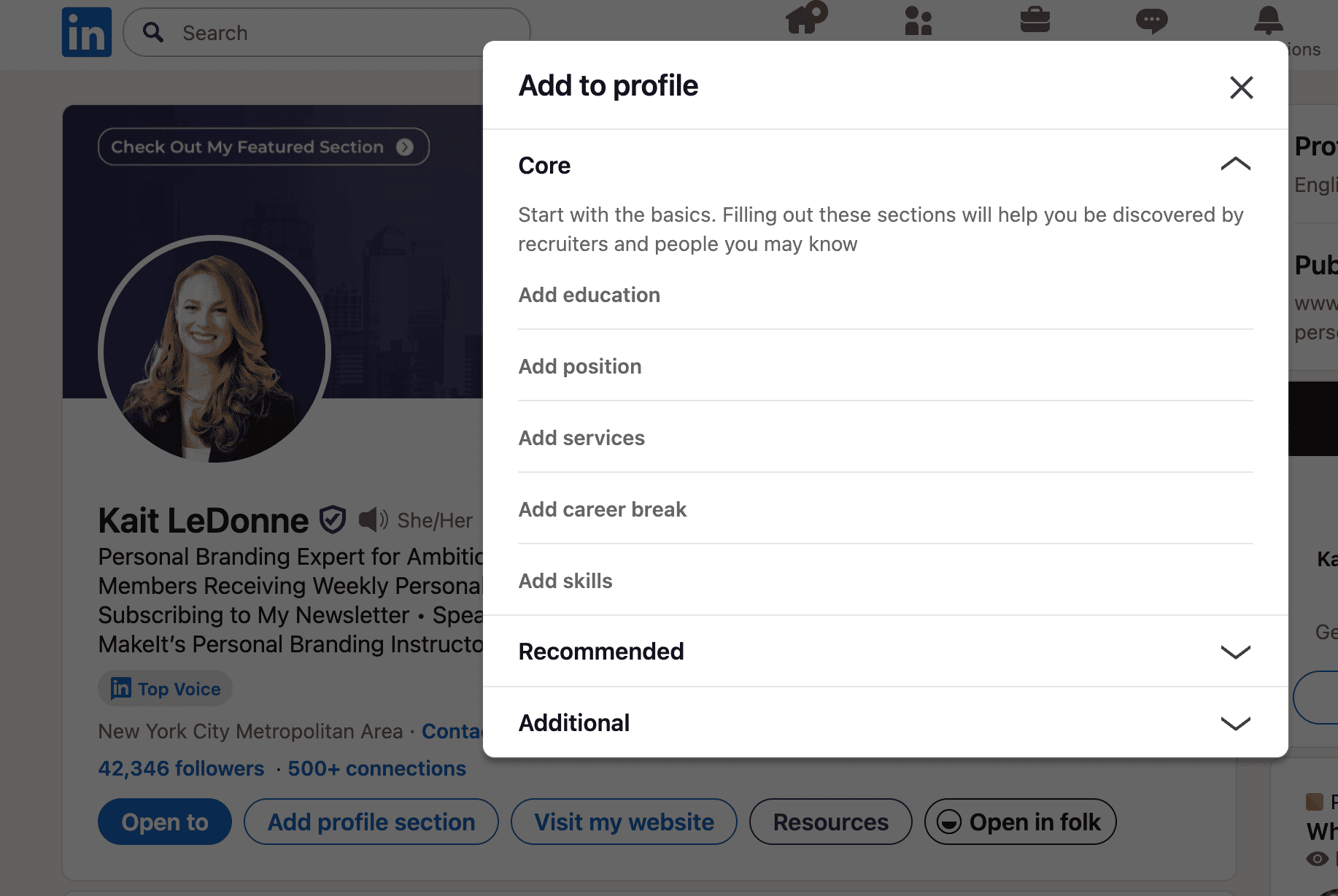
To turn it on? Just hit “Add profile section,” navigate under “Core,” and select “Add services.”
After you turn it on, consider doing the following:
Treat this as a mini speaker one-sheet
Use the description area and media to show:
Short positioning statement (who you help and how)
3–5 named signature talks or workshop titles
Links to your speaker reel, a full-length talk, and a 2–3 minute “event planner cut”
Logos of key clients (in images or video thumbnails)
A sentence on ideal event types: “Annual meetings, sales kickoffs, all-hands, offsites, association conferences…”
Several LinkedIn experts recommend using rich media and links in profile sections (Experience, Featured, and Services) to create a portfolio experience directly on your profile. Think Bespoke
Optimize reviews for conversion
Because reviews on your Services page are separate from standard recommendations, you can treat them like searchable testimonials:
Ask clients to mention:
Audience & context (“Senior leaders at a Fortune 500 manufacturing company…”)
Business outcome (“We brought Kait in to help our managers navigate restructuring; post-event survey scores on ‘clarity’ and ‘confidence’ jumped by 18%.”)
Booking experience (“Easy to work with, responsive, customized her content to our culture.”)
This not only persuades human readers; it also gives search engines and AI tools more concrete language around what you actually deliver.
3. Optimize your current position in your Experience section to feature “Keynote Speaker” (or “Speaker”)
Most speakers know to put “Speaker” in their headline—which is exactly what you should be doing.
Far fewer people:
Create a company page that highlights their speaking business (e.g., “Kait LeDonne Speaking”), and
Add a current role under Experience titled “Keynote Speaker” at that company.
Yet when someone searches “keynote speaker” on LinkedIn, the bolded term that gets pulled into search results is often your current position title, not just your headline.
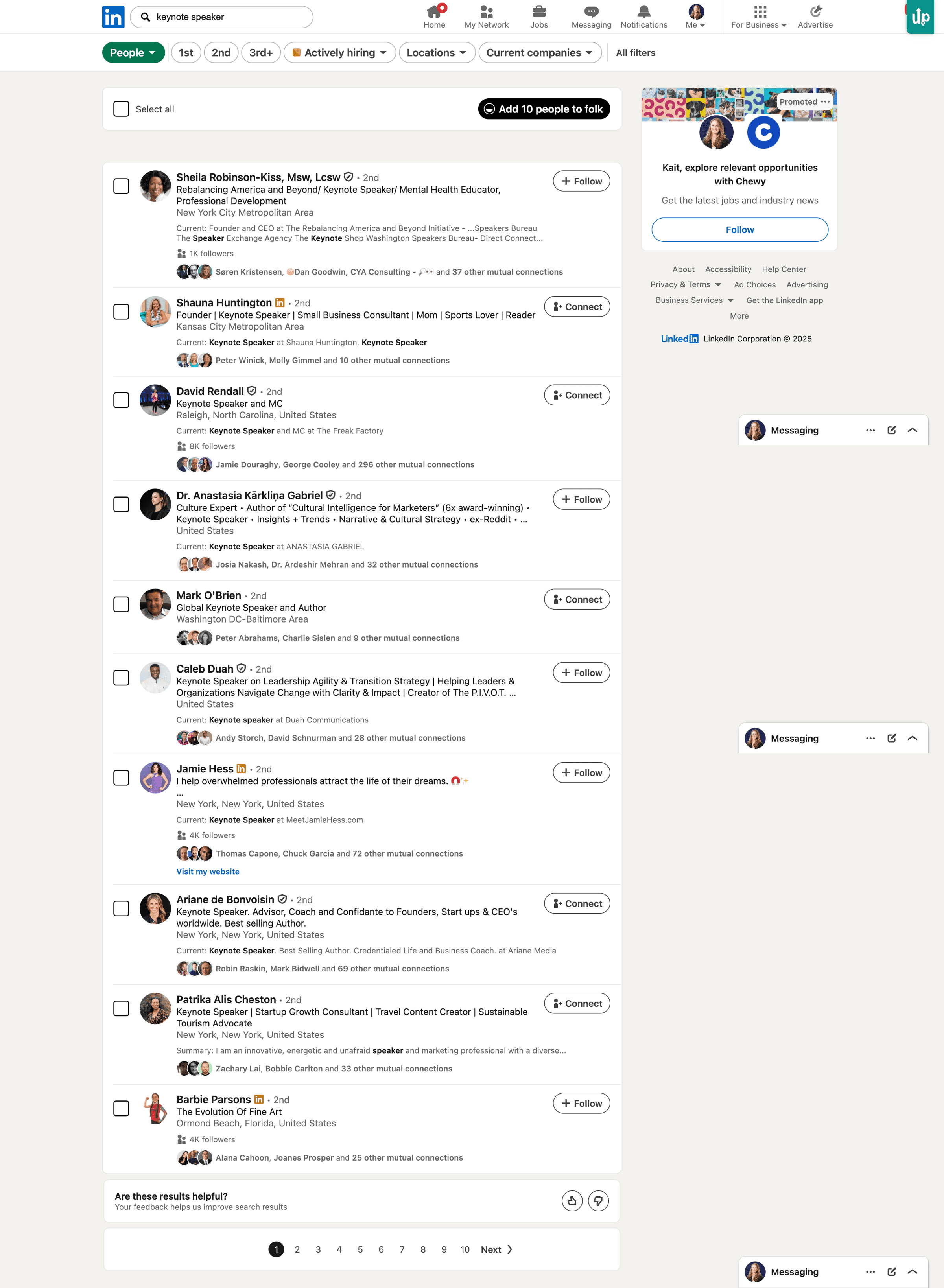
In other words, the part of your profile many people ignore as “Antarctica” (the Experience section—way south and sparsely read) is a huge factor in whether you even appear when an event planner searches for a speaker.
Public speaking guides now explicitly recommend using the Experience section to create standalone entries for conference speaking and to include keywords like “Keynote Speaker,” “Conference Speaking,” and “Panel Moderation” across Experience, Skills, and Accomplishments. California Learning Resource Network
How to structure your Experience entry as a speaker
Create a company page and current role that look something like:
Title: Keynote Speaker[Your Topic Focus]
Company: [Your Name] Speaking
Location: [Primary market, but you can note “Available globally/virtually” in the description]
Description highlights:
Who you speak to (e.g., “HR and leadership teams in growth-stage B2B companies”)
Signature talk titles and themes
1–2 quantifiable outcomes (e.g., survey scores, repeat bookings, % of business from referrals)
Specific formats (keynotes, workshops, executive offsites, virtual sessions)
You can then add separate Experience entries for especially marquee events:
Title: Keynote Speaker – [Flagship Conference Name]
Company: [Event Organizer / Association]
Description: Short, outcomes-focused summary plus a link to the talk, slides, or press.
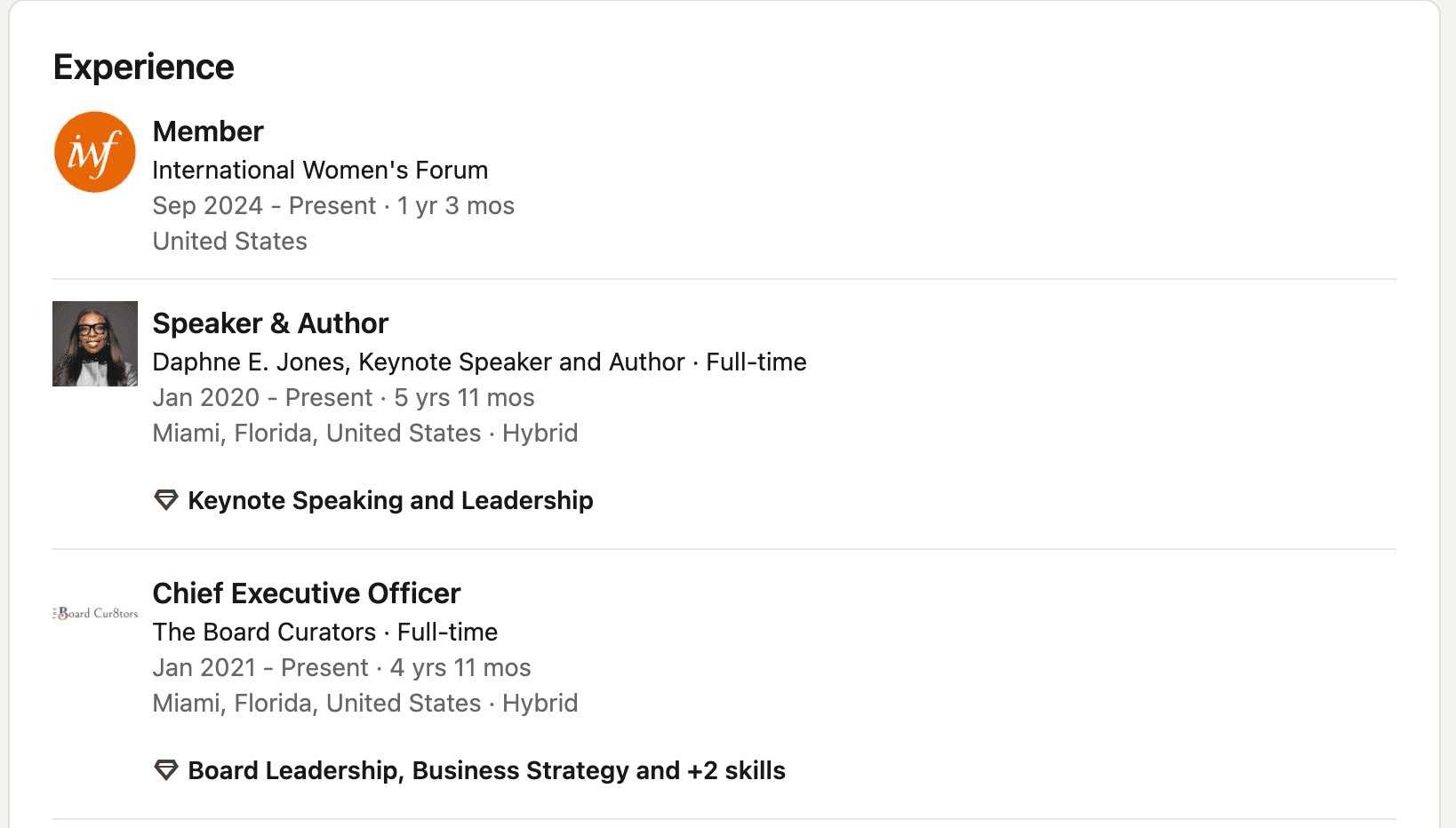
And make sure to highlight speaking as a skill under this section, like Daphne did below:
Check out the live workshop I did with Rachel Druckenmiller about how to use LinkedIn to make 2026 your best year as a paid speaker. Catch the replay here
Grab the accompanying webinar workbook here
If you want more speaking invitations, stop treating your LinkedIn profile like a résumé and start treating it like your speaker storefront.
Optimize your cover slideshow, Services section, and “Keynote Speaker” Experience entry so planners can instantly see who you are, what you deliver, and why you’re the right choice